Your school may allow you to request time off during placement within Exxat.
You can addd Time Off Entries from the Learning Activity Page or from the Coursework Section.
Coursework Section
To add Time OFF entry from the coursework section follow the steps below.
Steps:
Navigate to the Coursework section from the dashboard.
or
Go to the hamburger menu and select the Coursework.
2. The system will display all courses you are registered for.
3. The page will always list any current placements at the very top, followed by upcoming placements, and completed placements last. Please note, that time off can only be submitted in placement-based courses.
4. Select the require placement tab you would like to request time off by clicking View Details.
5. Click on Course Activities and go to the Time OFF section.
6. The system will show you a tally of our total time off, any in-progress requests, those that are pending review, those not approved, and those approved. To request time off, click on the arrow icon.
7. The page will load all your requests.
8. To Add a new Time OFF entry , Click Add Time Off button on the top of the grid.
9. Enter all the details in the Add Time OFF drawer and do one of the following.
1. Click Save: You can Save the Add Time OFF entry without filling all the columns and re-visit the entry at later time to complete. The status of the Entry changes to In Progress.
2. Click Send for Review: Complete all the fields and click Send for Review. The Time Entry is posted to the school administrator for approval. The Preceptor is also notified about the students Time OFF.
Once the drawer closes, your entries will appear with an updated status.
10. If you have any In Progress requests, you can select them and send all of them for review at once.
| Note: Once the Preceptor or the administrator approves the Time off, you cannot make changes to the request. Students receive email notification when the Time OFF request's status changes to Approved or Not approved. |
You can also delete the requested Time OFF , when the status of the Time Off Request is In Progress or Pending Review only.
Click on the delete icon in the Action column.
Time off Reports:
1. Click on the Learning Activities from the Student Dashboard
OR
Click on the Left Hand Hamburger Menu and select the Learning Activities Option.
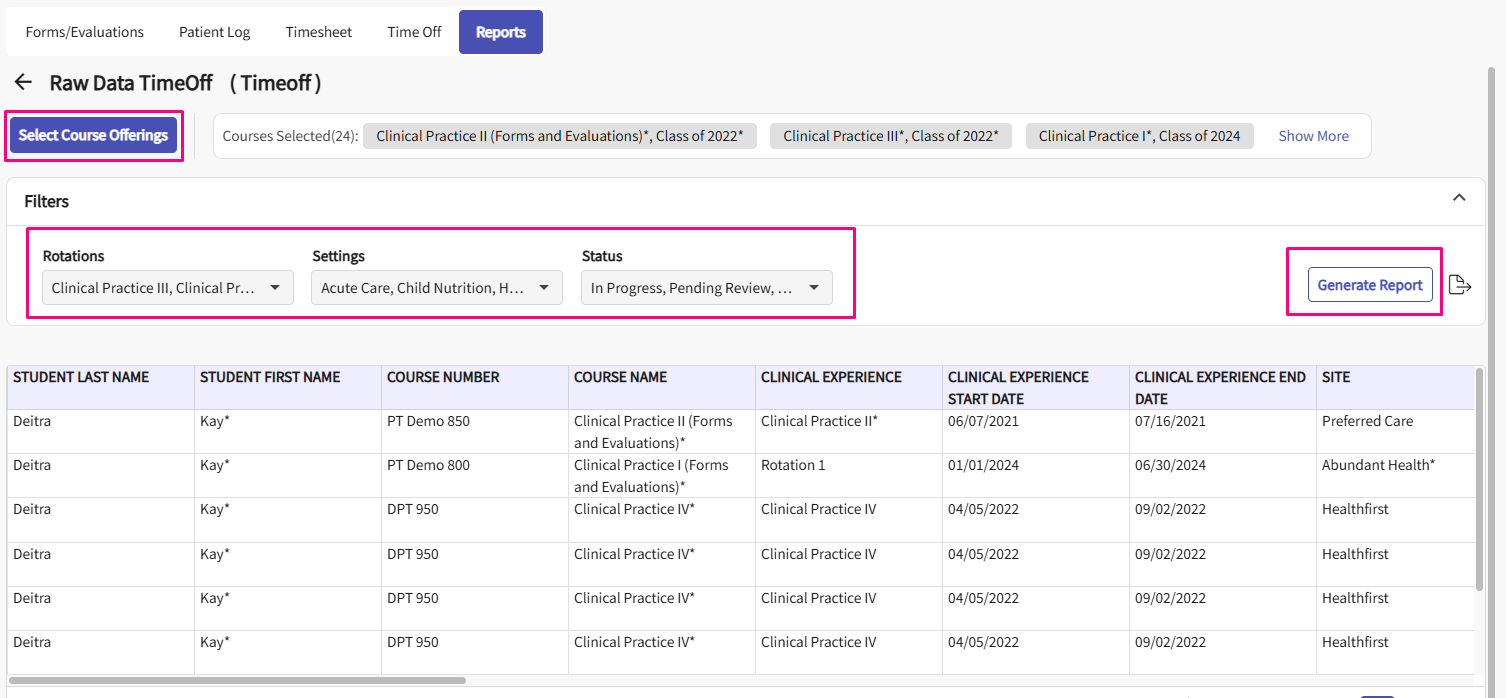
2. Click on Reports on the top ribbon, and then click on "Raw Data TimeOff" report name.
3. Select the Course offering for which you want to view the report. There are further filter options that a student can apply to view the report for specific rotations, settings and status, once the filters are selected click on generate report to view the details report for timesheet. This report can even be exported.
Learning Activities Section
To add Time OFF entry from the coursework section follow the steps below.
- Navigate to the Learning Activities section from the dashboard. click on the View Learning Activities in the student profile section.
- Go to the Time Off tab.
- Select the course offering for which you want to add the Time Off and click on the corresponding REQUEST BY STATUS column.
- On the top right of the table click + Add Time Off button.
- Fill the Add Time Off form.
- Select the From and To date.
- Select the appropriate Category from the drop-down.
- Enter your Reason for Time Off.
- Enter how you Plan for making up the time missed.
- Choose whether to notify the preceptor. To send a notification, select the checkbox and choose a preceptor from the drop-down.
- Browse to upload any additional supporting documents for the Time Off request.
- Click Save to save the form and edit it later.
- Click Send for Review to save the form and submit the Time Off for review.
Confirm your submission.
Time Off request is successfully added.
End --
0 comments
Please sign in to leave a comment.