
How do I engage on Community?
Step 1: Follow Community Topic Boards
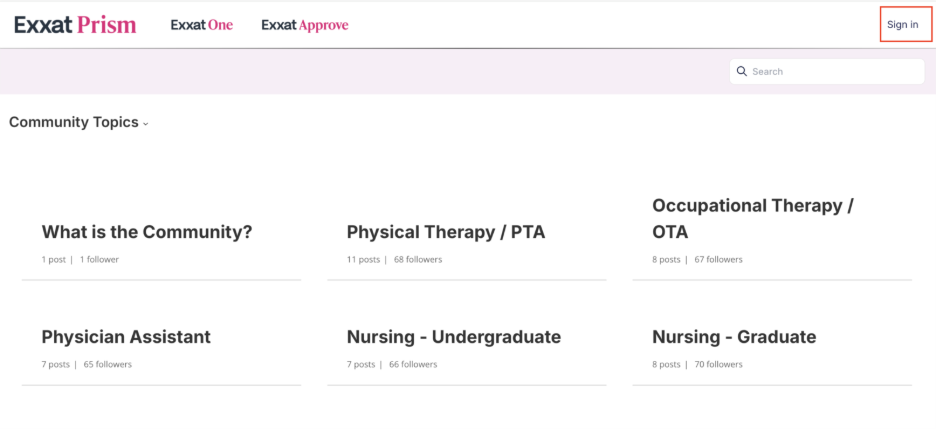
1) Go to the Community Topics website.
If the link above does not work, enter this website into your browser:
https://help.exxatprism.com/hc/en-us/community/topics
2) Click Sign In in the top right-hand corner:
3) Login using any of the methods:
⚠️ Important Note: Your Exxat Help Center account is separate from your main Exxat PRISM login. Even if you use the Exxat product regularly, you may still need to sign up for a Help Center account or request a password if this is your first time logging into the support portal.
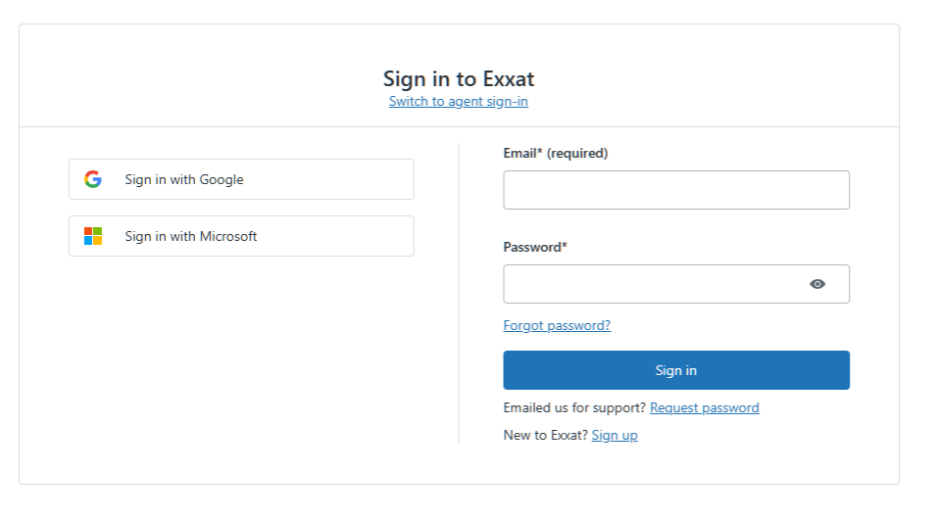
Method 1: First-Time Users (How to Sign Up)
If you are completely new to Exxat Support and have never emailed the support team or logged in before, you will need to register for a new account:
1. At the bottom right of the login screen, click the Sign up link located next to "New to Exxat?" A registration form will appear.
2. Enter your Full Name and Email Address into the required fields. If prompted, complete any required security checks (CAPTCHA, etc.).
o Tip: It is advisable to use your Email Address that is registered with Exxat PRISM
3. Click the Sign up button to submit your information.
4. Check your email inbox. You will receive a welcome email from Exxat containing a verification link. Click the link in the email to create your permanent password and activate your account.
5. Once your password is set, you can log in anytime using Method 2.
Method 2: Log in with Email and Password
If you have already set up a standard Help Center account with an email and password, follow these steps:
1. Navigate to the Exxat Help Center login page.
2. On the right side of the screen, locate the Email (required)* field and enter your registered email address.
3. Enter your password in the Password* field.
o Tip: You can click the small "eye" icon inside the password box to reveal your password and ensure it is typed correctly.
4. Click the solid blue Sign in button.
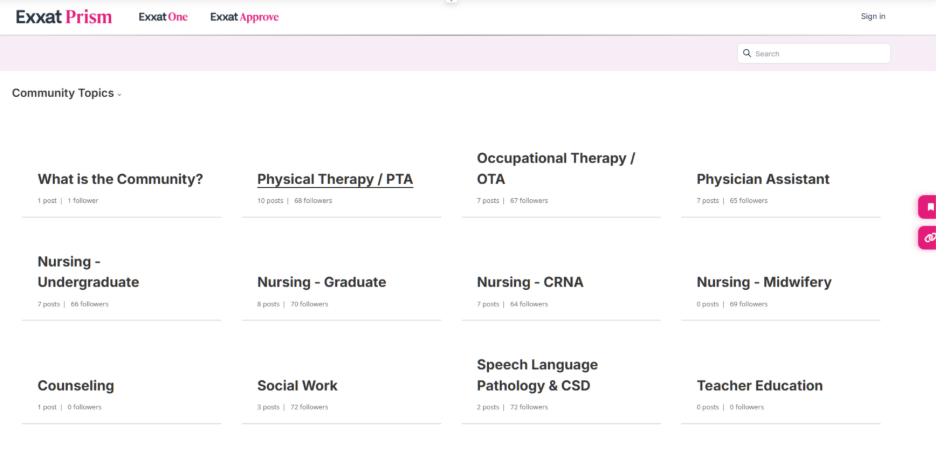
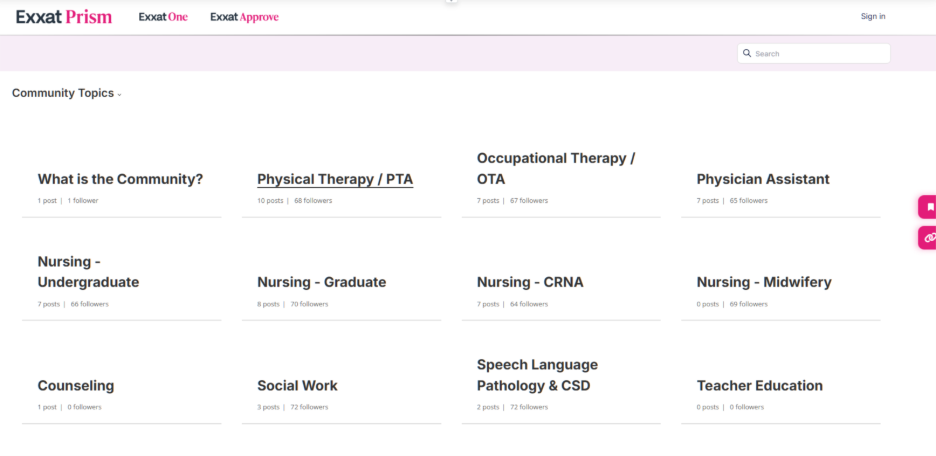
4) Click on the name of the topic of interest:
For Example: If you work for a PT/PTA Program, you may want to follow the Physical Therapy/PTA board
For a contracts coordinator in a Nursing Program, you can follow both boards for Nursing Undergraduate and Contracts Administrator!
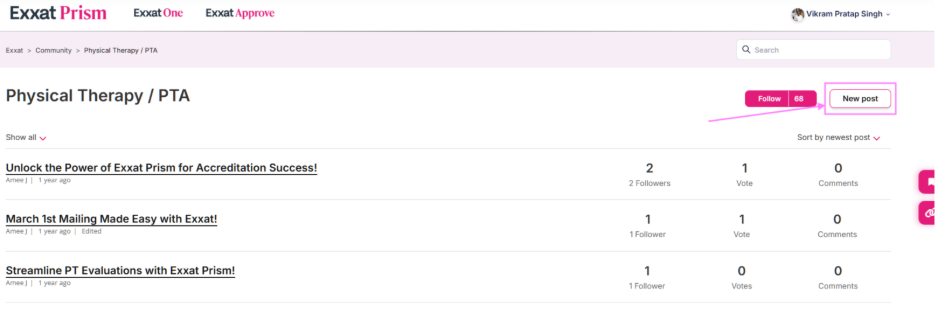
5) Click on the Follow button to get notifications on comments and responses to boards
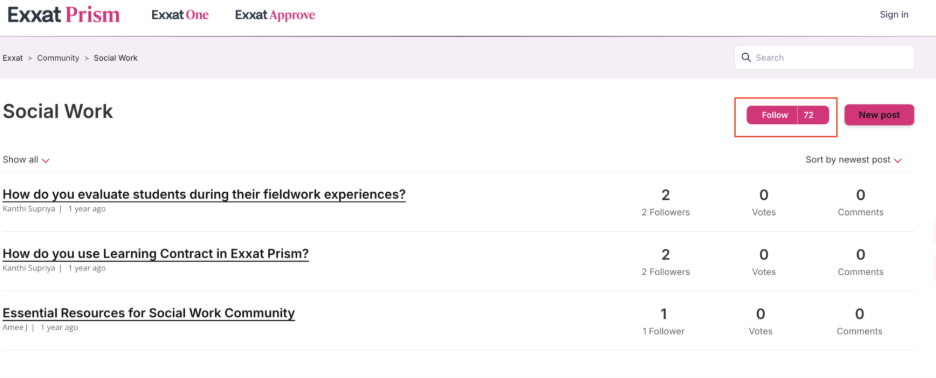
6) Follow and like posts and network with other universities! Posts can include:
- Thought-provoking questions about best practices in Exxat Prism and in the industry
- New accreditation requirements or standards
- Exxat Modules
To follow specific posts, click on the post title. In the top right-hand corner, select the Follow button, but choose whether you wish to receive notifications on comments or replies.
Step 2: Engage, Discuss, and Shape the Community!
Add your own posts and questions!
Don’t be afraid to start the discussions on industry topics and Best Practices! Please note that community members must be an Exxat Prism user in order to log in to post.
1) Click on the topic name:
2) Click the New Post button.
3) In the Topic Title section, we recommend a short subject line and main header.
We can highlight the posts for Discussion by adding “[Discussion]” to the post title and a short question. Note that other users can search for these keywords in our help center!
In the Details section, make sure to add your question, helpful links, and context for users to understand.
In the Topic Section, tag the topic from our dropdown list.
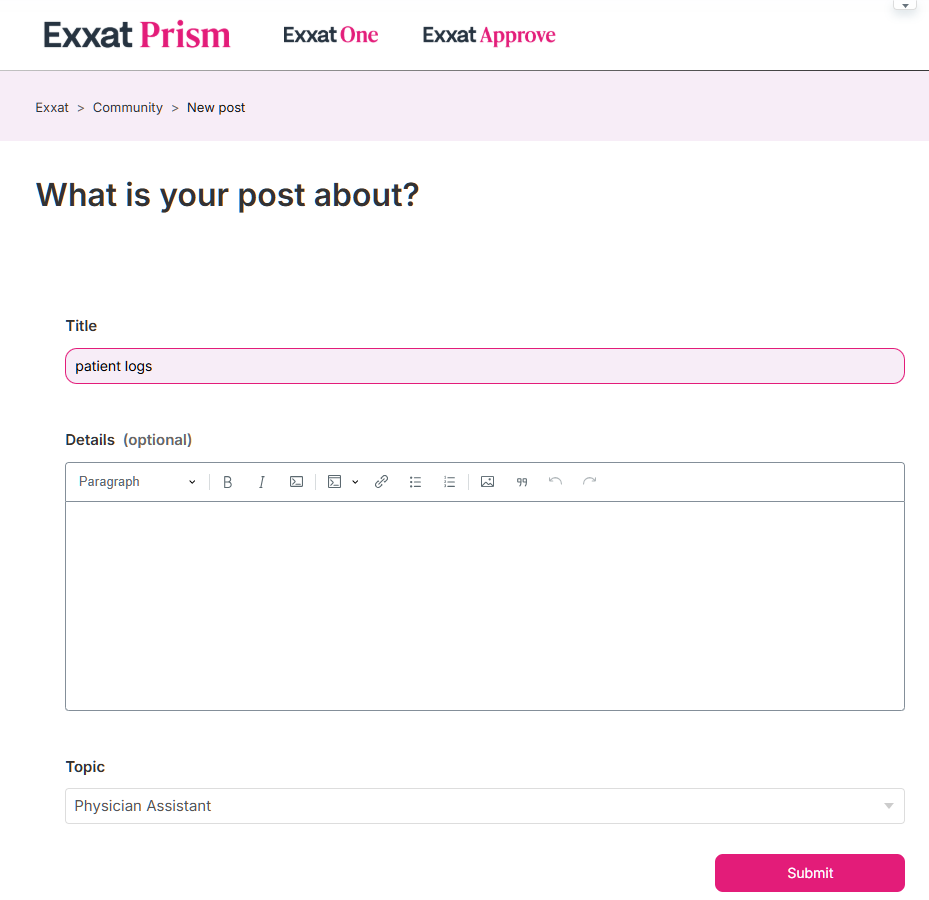
4) Click the Submit button. Please note your post may take up to 48-72 hours to be approved by our moderators.
Click here to view our Rules of Engagement for Posting.
The Exxat Team will be monitoring and approving posts and reserves the right to remove any spam or junk.
For any questions or access issues, please email our Support team at prism-support@exxat.com. Add Exxat Communities in the subject line of your email and add a brief description.
0 comments